> ## Documentation Index
> Fetch the complete documentation index at: https://docs.lyceum.technology/llms.txt
> Use this file to discover all available pages before exploring further.
# Python Execution
> Run Python code and Jupyter notebooks on Lyceum Cloud from VS Code or the CLI
## Video Tutorial
## VS Code Extension
The recommended way to run Python on Lyceum Cloud.
### Installation
1. Open VS Code
2. Go to Extensions (`Ctrl+Shift+X`)
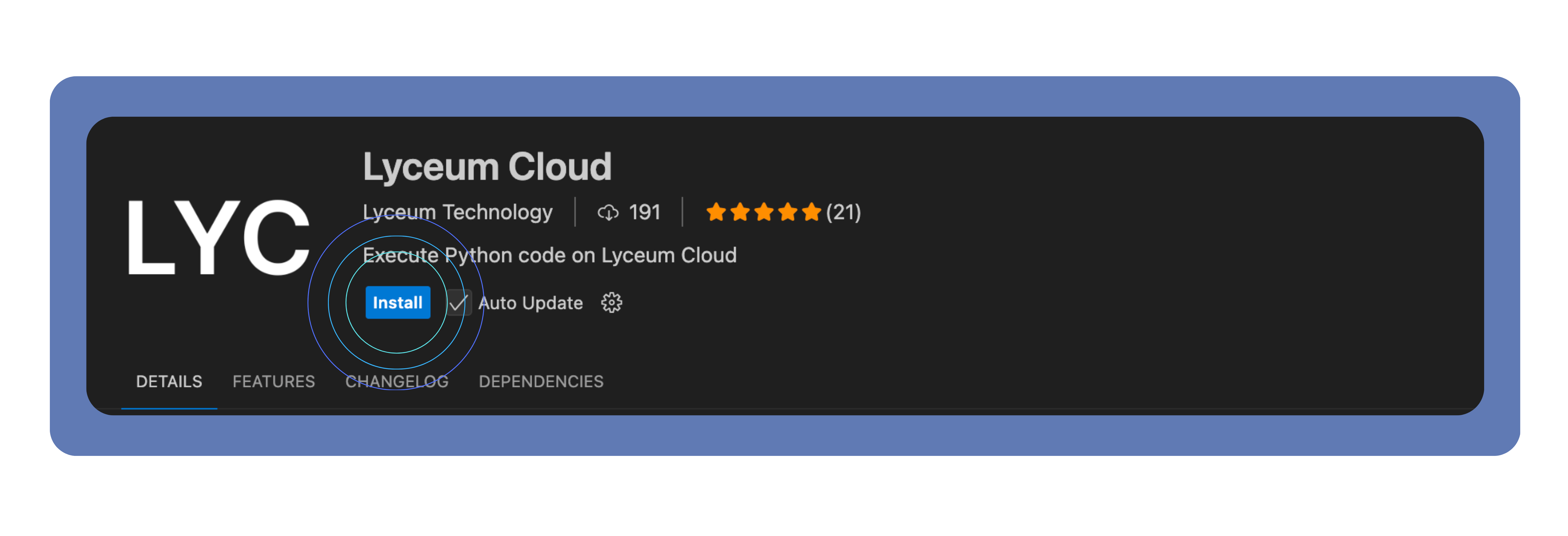
3. Search for "Lyceum Cloud"
4. Click Install
### Authentication
1. Open any `.py` or `.ipynb` file
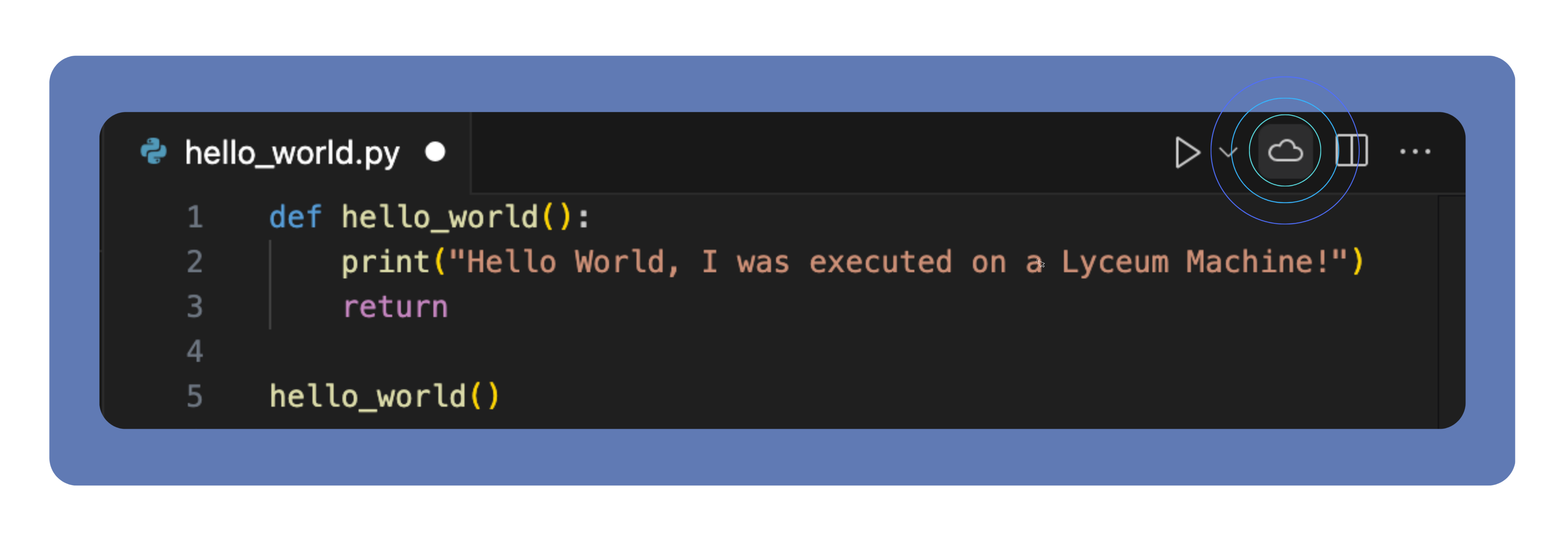
2. Click the cloud icon in the editor toolbar
3. Authenticate in your browser
4. Return to VS Code, you're ready
Authentication tokens are securely stored and automatically refreshed.
### Running Code
**Toolbar Button**, Click the cloud icon in the editor toolbar
**Keyboard Shortcut**, `Ctrl+Shift+E` (`Cmd+Shift+E` on Mac)
**Command Palette**, `Ctrl+Shift+P` → "Execute on Cloud"
**Cell Execution**
* Open a Jupyter notebook
* Click "Execute on Cloud" on any code cell
* View real-time output as it streams from the cloud
**Kernel State**
* The extension keeps track of previous executions
* Variables are synced between local and remote environments
Notebook outputs, including visualizations and data frames, are displayed in VS Code just like local execution.
### File Operations
Right-click files or folders in the VS Code Explorer → "Upload to Lyceum Cloud".
View, download, and delete files in the "Lyceum Cloud Files" panel.
### Commands Reference
| Command | Shortcut | Description |
| ---------------------- | -------------- | ------------------------------------------ |
| Execute on Cloud | `Ctrl+Shift+E` | Run current Python file or notebook cell |
| Upload to Lyceum Cloud | `Ctrl+Shift+U` | Upload selected files |
| Manage Executions | `Ctrl+Shift+M` | Open execution management panel |
| Configure API Token | — | Set authentication token (manual override) |
| View Execution History | — | Show execution history |
## CLI
### Installation
```bash theme={null}
pip install lyceum-cli
```
### Authentication
```bash theme={null}
lyceum auth login
```
This opens a browser for OAuth-style authentication. For headless environments, use `lyceum auth login --manual --api-key `.
Check status at any time:
```bash theme={null}
lyceum auth status
```
### Running Code
```bash theme={null}
# Run inline code
lyceum python run "print('Hello from Lyceum Cloud!')"
# Run a file
lyceum python run hello.py
# Run with a specific machine type (defaults to cpu)
lyceum python run train.py -m gpu.a100
# Run with requirements
lyceum python run script.py -r requirements.txt
# Pre-import modules (can be repeated)
lyceum python run script.py --import numpy --import pandas
# Pass script arguments after --
lyceum python run train.py -- --epochs 10 --batch-size 32
```
See [Machine Types](/docs/configuration/machine-types) for the available `-m` values.
### Workspace Configuration
If a `.lyceum/config.json` file exists in your project, the CLI will automatically pick up dependencies and other settings from it.
```bash theme={null}
# Initialize config in the current workspace
lyceum python config init
# View current config
lyceum python config show
```
To skip the workspace config for a single run, pass `--no-config`.
## Troubleshooting
* Re-authenticate by clicking the cloud icon in VS Code or running `lyceum auth login`
* Check that you're signed in to the [dashboard](https://dashboard.lyceum.technology)
* Verify internet connectivity and firewall settings
* Verify network connectivity during upload
* Ensure you are authenticated
* For very large files, contact support
Need help? Contact [support@lyceum.technology](mailto:support@lyceum.technology).