

Video Tutorial
VS Code Extension
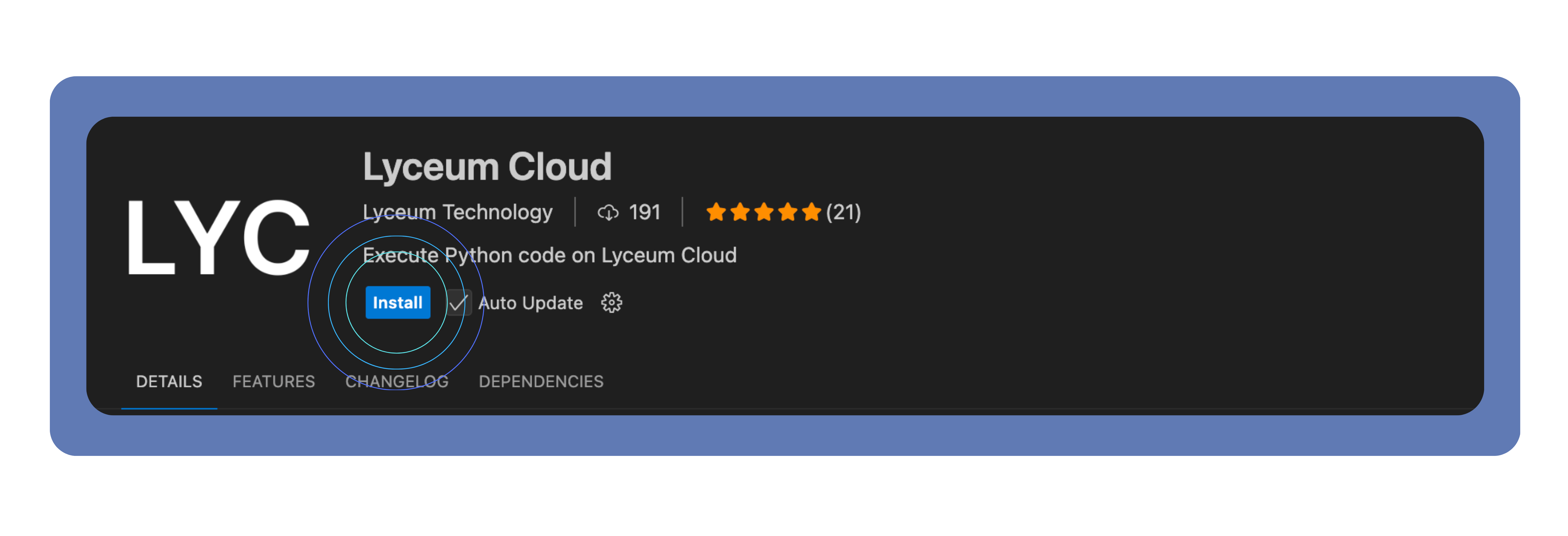
The recommended way to run Python on Lyceum Cloud.Installation
- Open VS Code
- Go to Extensions (
Ctrl+Shift+X) - Search for “Lyceum Cloud”
- Click Install
Authentication
- Open any
.pyor.ipynbfile - Click the cloud icon in the editor toolbar
- Authenticate in your browser
- Return to VS Code, you’re ready
Authentication tokens are securely stored and automatically refreshed.
Running Code
- Python Files
- Jupyter Notebooks
Toolbar Button, Click the cloud icon in the editor toolbarKeyboard Shortcut, 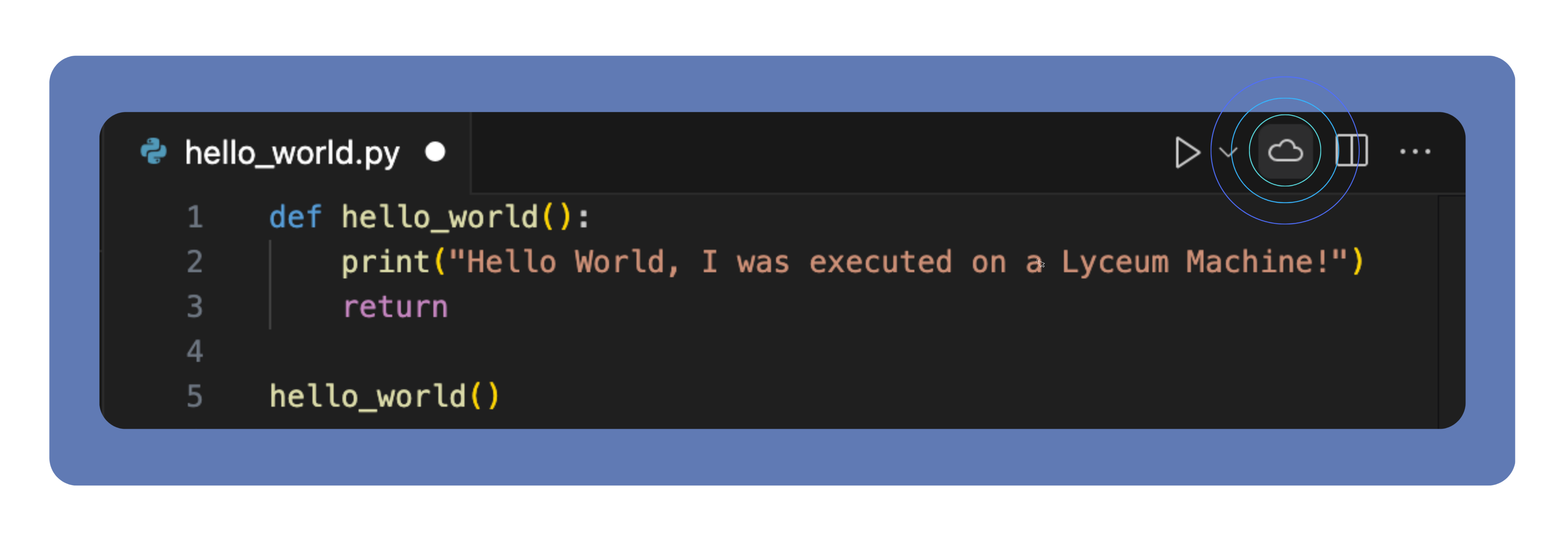
Ctrl+Shift+E (Cmd+Shift+E on Mac)Command Palette, Ctrl+Shift+P → “Execute on Cloud”File Operations
Upload Files to Cloud
Upload Files to Cloud
Right-click files or folders in the VS Code Explorer → “Upload to Lyceum Cloud”.
Manage Cloud Files
Manage Cloud Files
View, download, and delete files in the “Lyceum Cloud Files” panel.
Commands Reference
CLI
Installation
Authentication
lyceum auth login --manual --api-key <KEY>.
Check status at any time:
Running Code
-m values.
Workspace Configuration
If a.lyceum/config.json file exists in your project, the CLI will automatically pick up dependencies and other settings from it.
--no-config.
Troubleshooting
Authentication issues
Authentication issues
- Re-authenticate by clicking the cloud icon in VS Code or running
lyceum auth login - Check that you’re signed in to the dashboard
- Verify internet connectivity and firewall settings
File operation issues
File operation issues
- Verify network connectivity during upload
- Ensure you are authenticated
- For very large files, contact support
Need help? Contact support@lyceum.technology.